iPhoneとiPadでClean Linksへのペーストを許可する方法
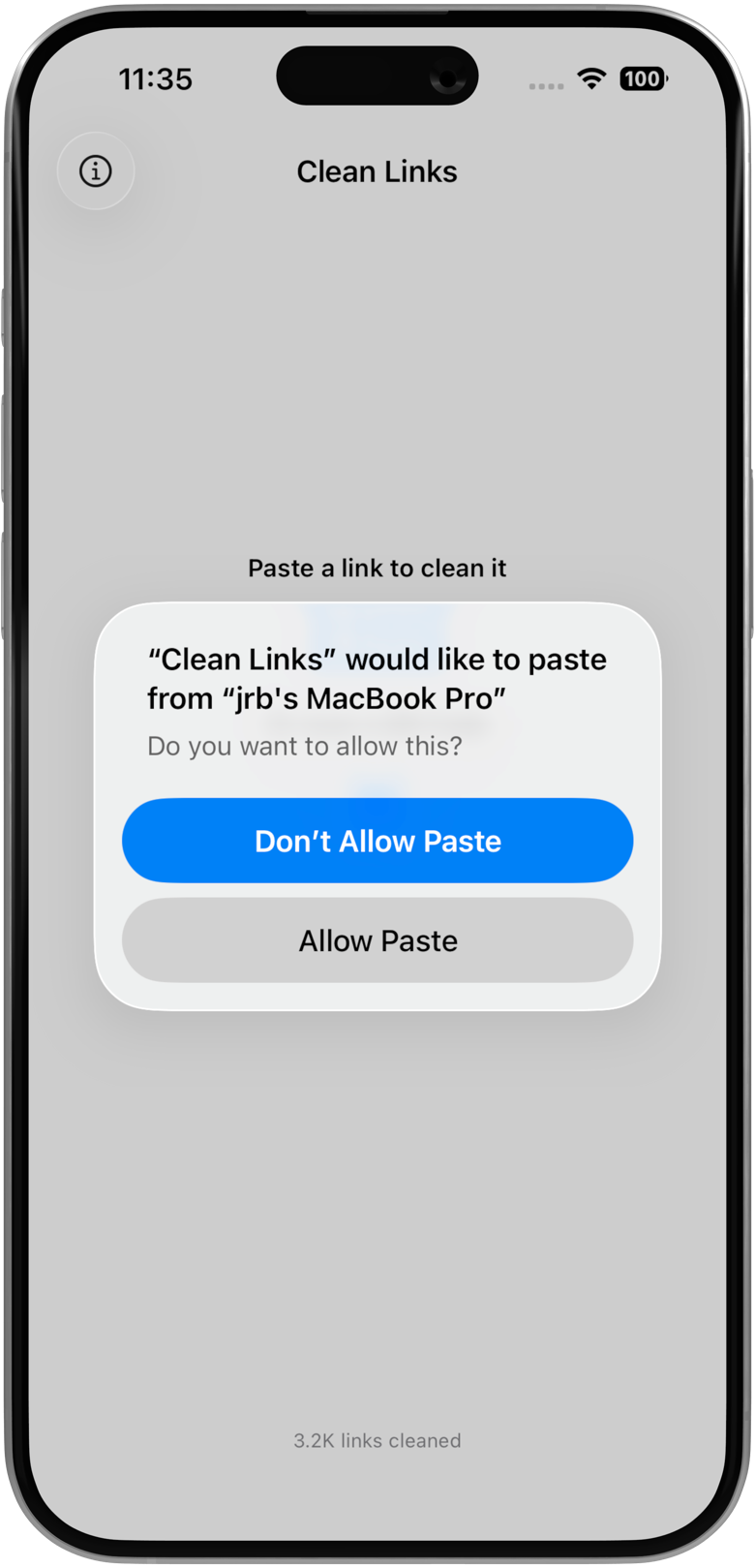
If iPhone or iPad asks whether Clean Links can paste from another app, you are looking at Apple's clipboard permission prompt. It appears when you copy a link in one app, switch to another app, and try to paste it there. For Clean Links, that usually means you copied a URL from Safari, Mail, Messages, or a social app and want to clean it before you share or open it.
This guide shows what the prompt means, how to allow paste for Clean Links, what to do if you already tapped Don't Allow, and how to keep clipboard-based cleaning private and under your control.
What "Paste from Other Apps" Means on iPhone
Starting in iOS 16, Apple added a separate permission for pasting from the clipboard. Apps are set to Ask by default, which means iPhone shows a prompt the first time an app tries to paste something copied in another app. Apple documents how to control app access to information in its iPhone User Guide, and the clipboard prompt is part of that same permission model.
That prompt is not a warning about Clean Links doing anything unusual. It is how iOS surfaces clipboard access. If you copied a link and then opened Clean Links to clean it, preview it, or pass it into a Shortcut, iOS may ask whether Clean Links can use that clipboard content.
If you tap Allow, Clean Links can paste copied links without asking every time. If you leave it on Ask, iPhone keeps prompting. If you tap Don't Allow, manual paste workflows stop working until you change the setting again.
How To Allow Paste For Clean Links
The fastest path is to allow the prompt when it appears:
- Copy a link from Safari, Messages, Mail, or another app.
- Open Clean Links.
- Paste the link into the app.
- When iPhone shows Paste from Other Apps, tap Allow.
That is enough on most devices.
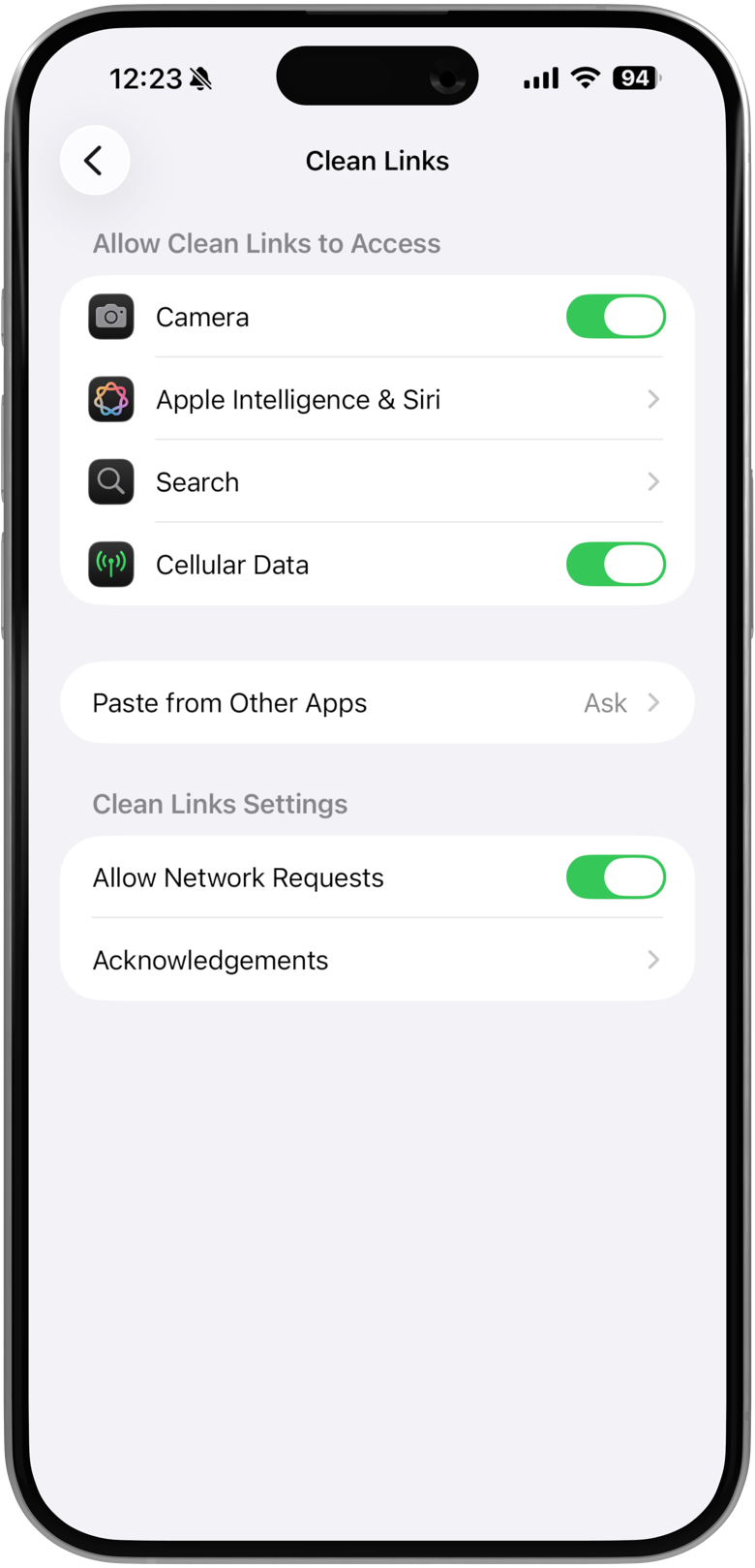
If you already dismissed the prompt or tapped Don't Allow, change it in Settings:
- Open the Settings app.
- Open Apps.
- Find and tap Clean Links.
- Tap Paste from Other Apps.
- Choose Allow.
On some iOS versions, Apple still shows app settings directly in the main Settings list. If you do not see Apps, scroll down in Settings, tap Clean Links, then open Paste from Other Apps there.
What To Do If You Tapped "Don't Allow"
If paste stopped working, you do not need to reinstall the app.
- Open Settings.
- Go to Apps -> Clean Links -> Paste from Other Apps.
- Change the setting from Don't Allow or Ask to Allow.
- Return to Clean Links and paste the link again.
If you do not see the setting yet, copy a link first, open Clean Links, and try pasting again. iOS sometimes waits until an app actually requests clipboard access before showing the control in Settings.
Why Clean Links Needs Paste Access
Clean Links uses paste access for one simple reason: you copied a link elsewhere and want to work with it here.
That includes a few common flows:
- Clean a copied URL before sharing it again
- Expand a short link to see the final destination
- Open the app, paste a link, then generate a clean QR code
- Start from a copied link and continue with Apple Shortcuts link cleaning
If you do not want to paste manually, you can often skip clipboard access entirely by using the iOS Share Sheet. Many guides on this site use the Share Sheet first because it is faster and avoids the prompt altogether.
Privacy Note: What Happens To Pasted Links
Pasted links are handled on-device. Clean Links does not log or store the links you clean or check.
Many links can be cleaned fully offline. Some short links and redirect wrappers need a direct request from your device to the destination in order to reveal the final URL. When that happens, Clean Links still does not send the link through a third-party API or through Numen's servers. The request goes from your device to the destination, and Clean Links strips tracking parameters before and after each redirect hop when possible.
If you want clipboard-based cleaning to stay fully on-device with no outbound requests at all, disable all network requests in Clean Links settings or in a Shortcut. Clean Links will still strip known tracking parameters, but it will stop following redirect chains for short links like bit.ly or t.co.
If you want more detail, the Clean Links FAQ explains how local processing and redirect resolution work.
What To Do Next
Once paste access is allowed:
- Paste a copied link into Clean Links and clean it directly
- Use the Share Sheet when another app already exposes the URL, like the flows in the Reddit link cleaner and X link cleaner guides
- Build a shortcut from the Apple Shortcuts guide if you want the clipboard flow to feel more like one tap
If you came here because iPhone kept interrupting a copy-and-paste flow, the Share Sheet is usually the cleanest fix. If you prefer opening Clean Links and pasting links yourself, set Paste from Other Apps to Allow once and you should be done.
FAQ: Allow Paste For Clean Links
Does Clean Links read my clipboard all the time? No. This setting controls whether iOS lets Clean Links paste clipboard content when you use a paste-based workflow.
Can I leave it on Ask? Yes. Clean Links still works, but iPhone may show the prompt again when you paste a copied link.
Can I use Clean Links without clipboard access? Yes. The Share Sheet, Safari extension, QR reader, and many Shortcut flows do not require manual pasting from the clipboard.
Get Clean Links
Allow paste once, then clean copied links without the repeated prompt. Download Clean Links free for iPhone, iPad, and Mac.