How to Use the Clean Links Safari Extension on iPhone & Mac
Most links on a webpage carry tracking parameters - utm_source, fbclid, gclid, and dozens more - whether you click them, hover over them, or copy them. Safari's built-in ATFP protections strip some of those parameters during navigation, but they do not clean everything you copy and share.
Update, May 2026: Clean Links now adds automatic Safari navigation cleanup on iPhone, iPad, and Mac. The extension strips supported tracking parameters before the page opens, then still gives you the manual page-cleaning button for links already embedded on the page.
The extension works alongside, not instead of, Safari's built-in privacy features. For a full breakdown of what each covers, see Clean Links vs Safari Advanced Tracking & Fingerprinting Protection.
What the Safari Extension Does
The extension now has two link-cleaning modes in Safari:
- Automatic navigation cleanup - supported tracking parameters are stripped as Safari navigates, before the page opens.
- Manual page cleanup - when you activate the extension, Clean Links scans every
<a>href on the current page, strips tracking parameters from each one, and replaces them in place.
The manual cleaner still shows a count of how many links were cleaned, so you know at a glance how aggressively the page was tracking outbound clicks.
Covered parameters include the full UTM family (utm_source, utm_medium, utm_campaign, utm_term, utm_content), as well as platform-specific click IDs like fbclid, gclid, igshid, and more. The extension also includes the Send to Mac button from Clean Links' core feature set, so you can hand off the current page to your Mac directly from the popover.
Everything runs locally. The automatic navigation cleaner uses Safari extension rules, and the manual page cleaner runs in an isolated context. See the Clean Links FAQ for details on the privacy architecture.
The extension works on both iPhone/iPad (iOS 18.0+) and Mac (macOS Sequoia+).
How to Enable on macOS
- Open Safari.
- From the menu bar, choose Safari > Settings.
- Click the Extensions tab.
- Find Clean Links in the list and check the box next to it.
Once enabled, the Clean Links icon appears in the Safari toolbar. If you don't see it, right-click the toolbar and choose Customize Toolbar to add it.
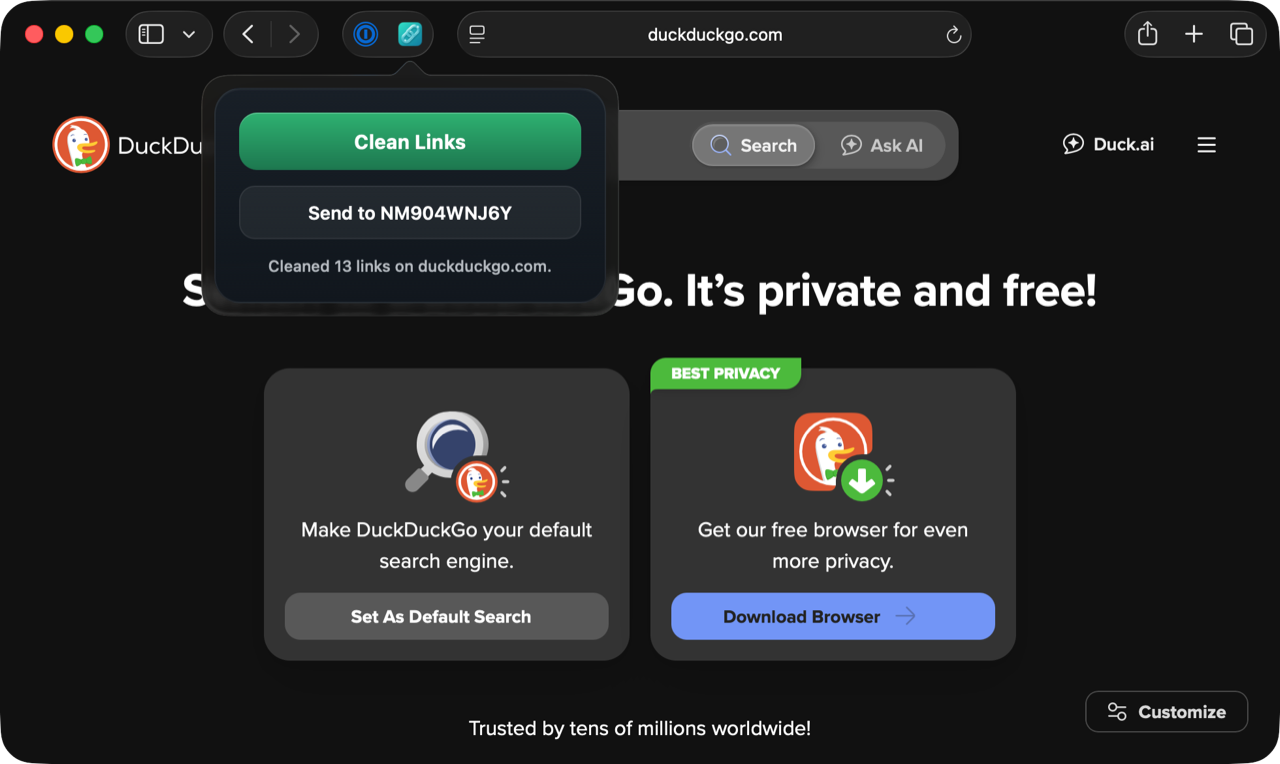
Safari may ask for permission to allow the extension to read the current page. Grant access - the extension needs to read link hrefs to clean them. All processing stays on your Mac.
How to Enable on iOS
- Open Safari and navigate to any webpage.
- Tap the address bar to reveal the browser chrome, then tap the aA (or puzzle-piece) icon on the left side of the address bar.
- Tap Manage Extensions.
- Toggle Clean Links on.
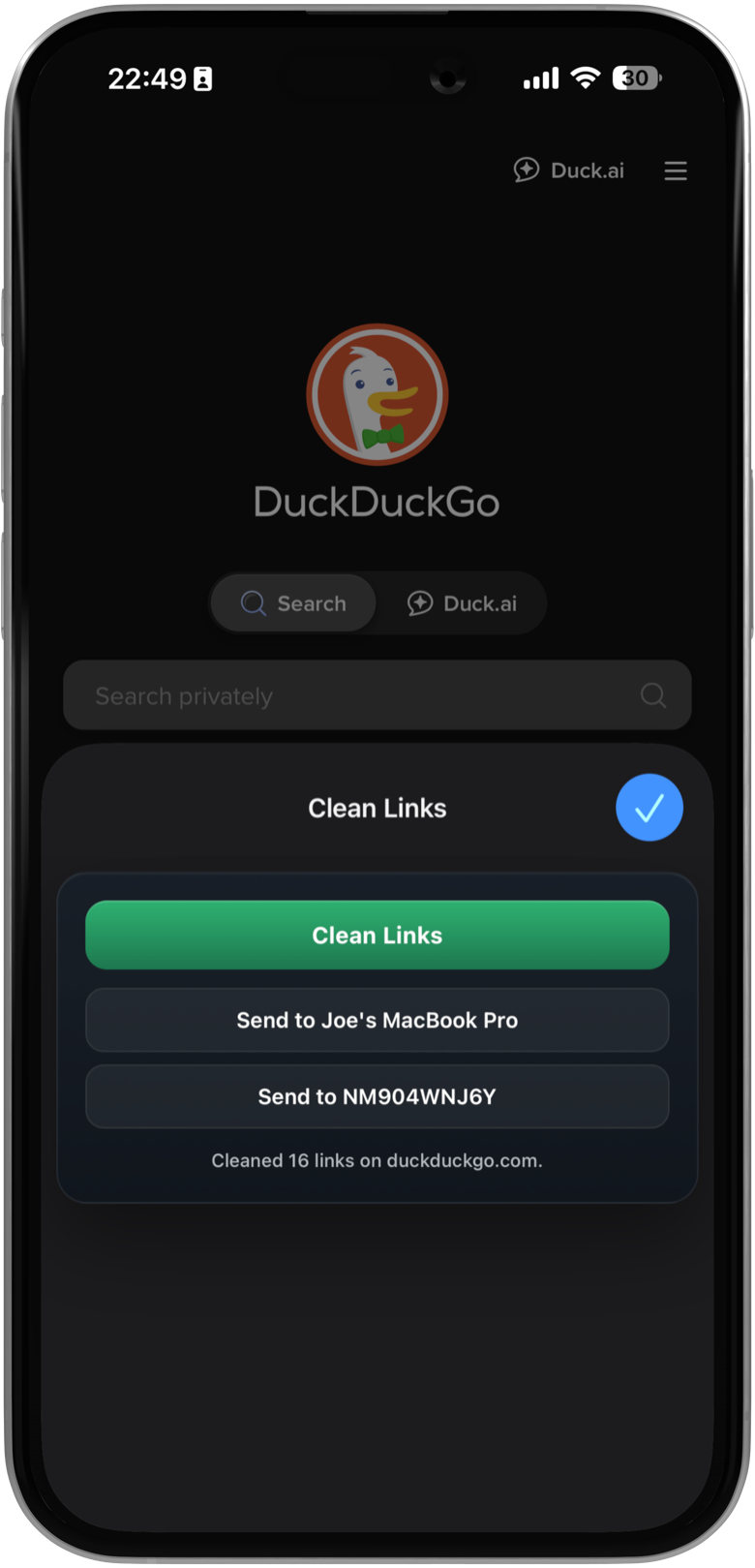
Safari on iOS may ask whether to allow the extension on this page, for one day, or always. Choose Always Allow on Every Website to use it without repeated permission prompts.
Using the Extension
On Mac
Click the Clean Links icon in the Safari toolbar. A small popover appears showing "Ready to clean links on this page." Click the green Clean Links button. Within a moment, the popover updates to show "Cleaned X links on [domain]" - where X is the number of links that had tracking parameters removed. The links on the page are now clean; if you copy or share any of them, the trackers are gone.
The popover also includes a Send to Mac button. This is useful when you're on one Mac and want to send the current page link to a different Mac - for example, one outside AirDrop range or on a separate network. Send to Mac works via iCloud sync, so it reaches Macs that are asleep or on a different Wi-Fi network.
On iPhone and iPad
Tap the aA icon in the address bar, then tap Clean Links from the extensions list. An extension sheet slides up showing two buttons: Clean Links and Send to [Device Name].
Tap Clean Links to strip tracking parameters from every link on the page. Tap Send to [Device Name] to forward the current page link to your Mac through iCloud - no AirDrop, no proximity requirement.
Send to Mac on iOS works the same way as the Mac version: links travel via iCloud sync, so they arrive even if your Mac is asleep, on a different network, or outside Bluetooth range. You can also reach multiple Macs - the button cycles through the Macs associated with your iCloud account.
Disabling Network Requests
By default, Clean Links can make direct network requests from your device to resolve short links like bit.ly and t.co. These requests use sandboxed sessions with randomized user agents and no cookies - no third-party API is involved. When the extension encounters a shortened link, it can follow the redirect chain and strip trackers from the final destination, not just the first hop.
The setting behind this is Allow Network Requests in the app's Settings, and it is on by default. If you want Clean Links to make zero outbound connections, turn it off. With the setting off:
- Automatic Safari navigation cleanup still strips supported tracking parameters using local rules.
- Tracking parameters (utm_*, fbclid, gclid, igshid, and all other known patterns) are still stripped from every link on the page.
- Short links are left in their shortened form - they won't be expanded, because expansion requires a network hop.
- The Safari extension respects this setting automatically.
You can also toggle this setting through Apple Shortcuts, which means you can build automations that switch between full redirect-following and strict no-network modes depending on context.
Turning it off is ideal for anyone who wants absolute certainty that no outbound connections are made, even sandboxed ones.
Which Trackers Are Removed?
The extension removes the same parameters as the rest of Clean Links. Common ones you'll see stripped:
Analytics and marketing
utm_source,utm_medium,utm_campaign,utm_term,utm_content(Google Analytics / campaign tracking)
Platform click IDs
fbclid- Facebookgclid- Google Adsigshid- Instagramli_ref- LinkedIntt_from- TikTok
These are the parameters you'll encounter most often, but they represent a small fraction of what Clean Links covers. The app removes tracking parameters across thousands of domains, with coverage expanding each update as new patterns are identified. Parameters differ by platform, region, and campaign type - Clean Links handles that complexity so you don't have to think about it.
Download Clean Links free on the App Store and try the extension on the next page you browse. Check the "Cleaned X links" count - on most news sites, social platforms, and e-commerce pages, that number is higher than you'd expect.
For details on the May 2026 update, see Safari Link Cleaner: Clean URLs Before the Page Opens.
For more ways to automate link cleaning across your Apple devices, see the Apple Shortcuts guide.
FAQ
Does the Safari extension work in private browsing?
Yes. The extension is available in Private Browsing windows in Safari. All processing remains on-device regardless of the browsing mode.
Can I use the Clean Links extension in other browsers like Chrome and Firefox?
No - the extension is Safari-only today. We are considering Firefox and Chrome ports, especially now that Clean Links covers the core automatic URL cleanup workflow in Safari. For the background on that work, see Safari Link Cleaner: Clean URLs Before the Page Opens.
On Mac, Clean Links' Clipboard Monitoring (available from the menu bar) provides continuous, browser-agnostic link cleaning: any URL you copy gets cleaned automatically, no matter which browser or app you copied it from.
Does enabling the extension slow down page loads?
Automatic navigation cleanup runs through Safari extension rules, not injected page scripts. The manual page-cleaning action is still inactive until you click the toolbar icon on Mac or tap it from the extensions menu on iOS.
Why does Safari ask for permission to read the page?
Safari requires extensions to declare when they need access to page content. Clean Links needs to read link href attributes to clean links already embedded on the page. That page access is used by the manual cleaner when you actively trigger the extension.
Is Send to Mac the same as AirDrop?
No. Send to Mac uses iCloud sync instead of Bluetooth/Wi-Fi Direct. It works when the target Mac is asleep, on a different network, or out of AirDrop range. It also works across multiple Macs without device discovery delays.